Loading Logs
Logs are loaded from ADIF files exported by your logging program. Loading
takes three steps: choose the file, review the QSOs, and commit them.
Choose Load Log from the menu, or open load.php. You need to be
logged in.
Before You Export
Firefly QSL reads ADIF 2 and the non-XML ADIF 3 format (.adi). It does
not read ADX (the XML format).
Some logging programs let you choose which fields to export. Make sure at least these are included:
| ADIF field | Used for |
|---|---|
QSO_DATE |
Date |
TIME_ON |
Time |
CALL |
The worked callsign people search for |
FREQ or BAND |
Frequency or band. With only FREQ, the band is worked out from it |
MODE |
Mode |
RST_RCVD |
RST. If missing, cards print 599 for CW and 59 otherwise |
OPERATOR |
Operator. If missing, the station callsign is used |
COMMENT |
Optional comment, which can be printed on the card |
Other fields in the file are ignored.
No duplicate checking
Firefly QSL does not check for duplicate QSOs. Loading the same log twice puts every QSO in twice, and people will see each contact twice. Load each log once, or export only the new QSOs since the last load.
Step 1: Choose the File
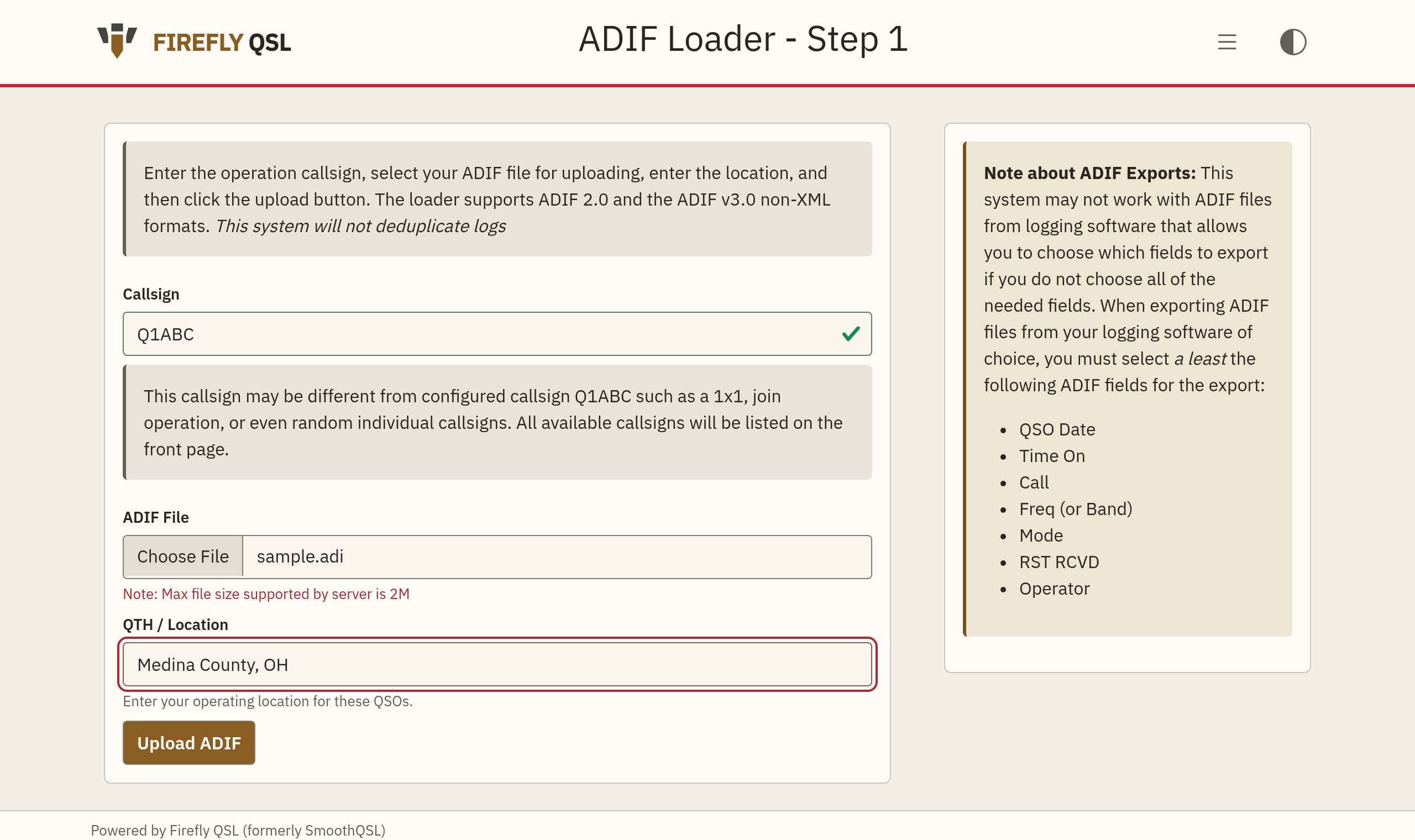
Callsign is the station callsign the QSOs were made under. It does not have to be the club callsign: a 1×1 special event call, a joint operation, or a member's own callsign all work. Every callsign loaded is listed on the home page.
ADIF File is the log to upload. The largest file the server accepts is shown under the field. See Installation to raise it, or use the command-line loader for very large logs.
QTH / Location is where these QSOs were made, for example
Medina County, OH. It is stored with every QSO in the file and can be
printed on the card. To load QSOs from several locations, load a separate
file for each.
Click Upload ADIF.
Step 2: Review
The next page lists every QSO found in the file. Nothing has been saved yet.
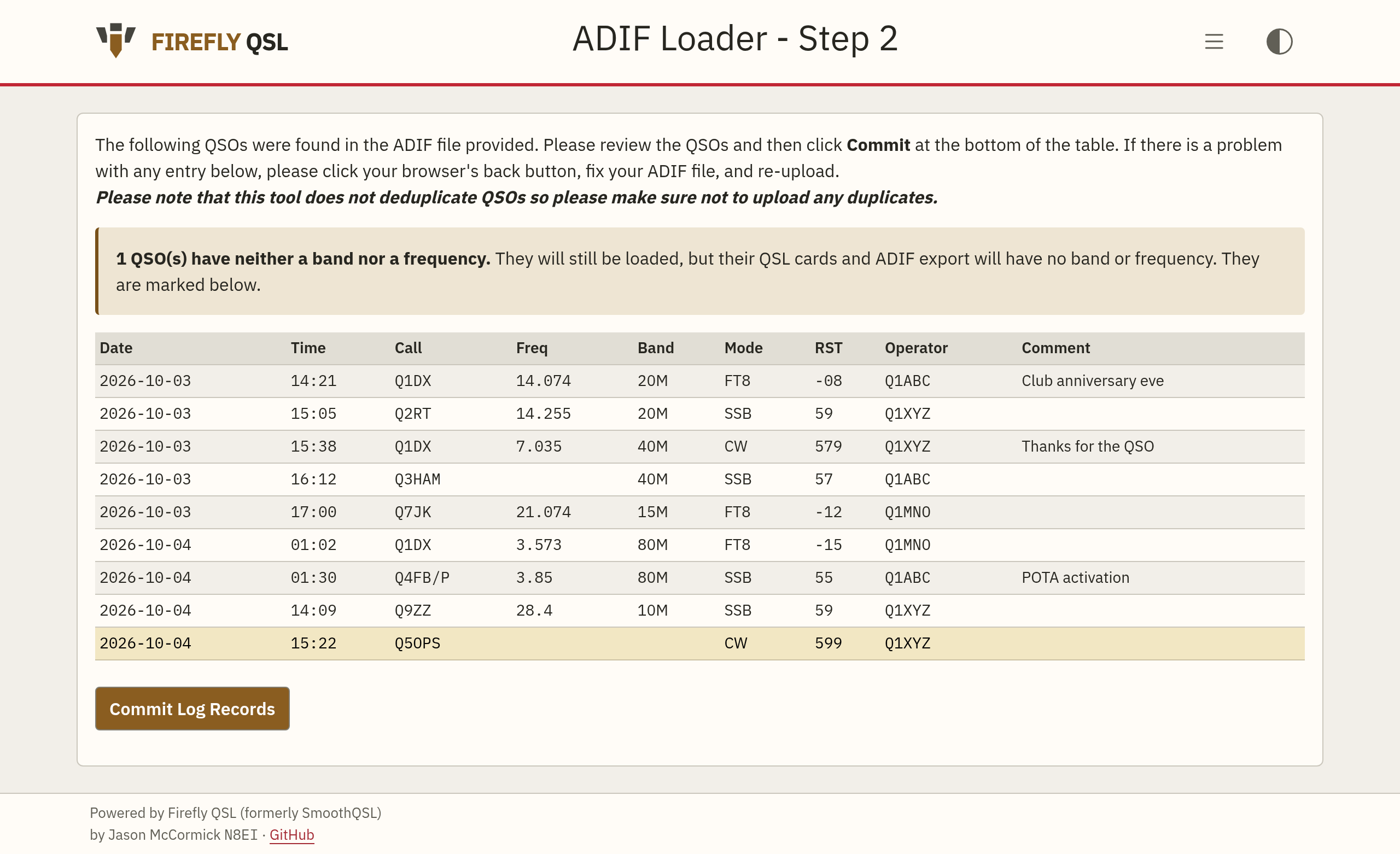
Check that the dates, times, callsigns and bands look right. If anything is wrong, click the browser's back button, fix the file in your logging program, and upload it again.
QSOs with neither a band nor a frequency are highlighted and counted in a warning at the top. They still load, but their cards and the ADIF export will have no band or frequency on them.
When the list is right, click Commit Log Records.
Step 3: Done
The receipt shows the total number of QSOs now in the database and the first and last QSO dates.
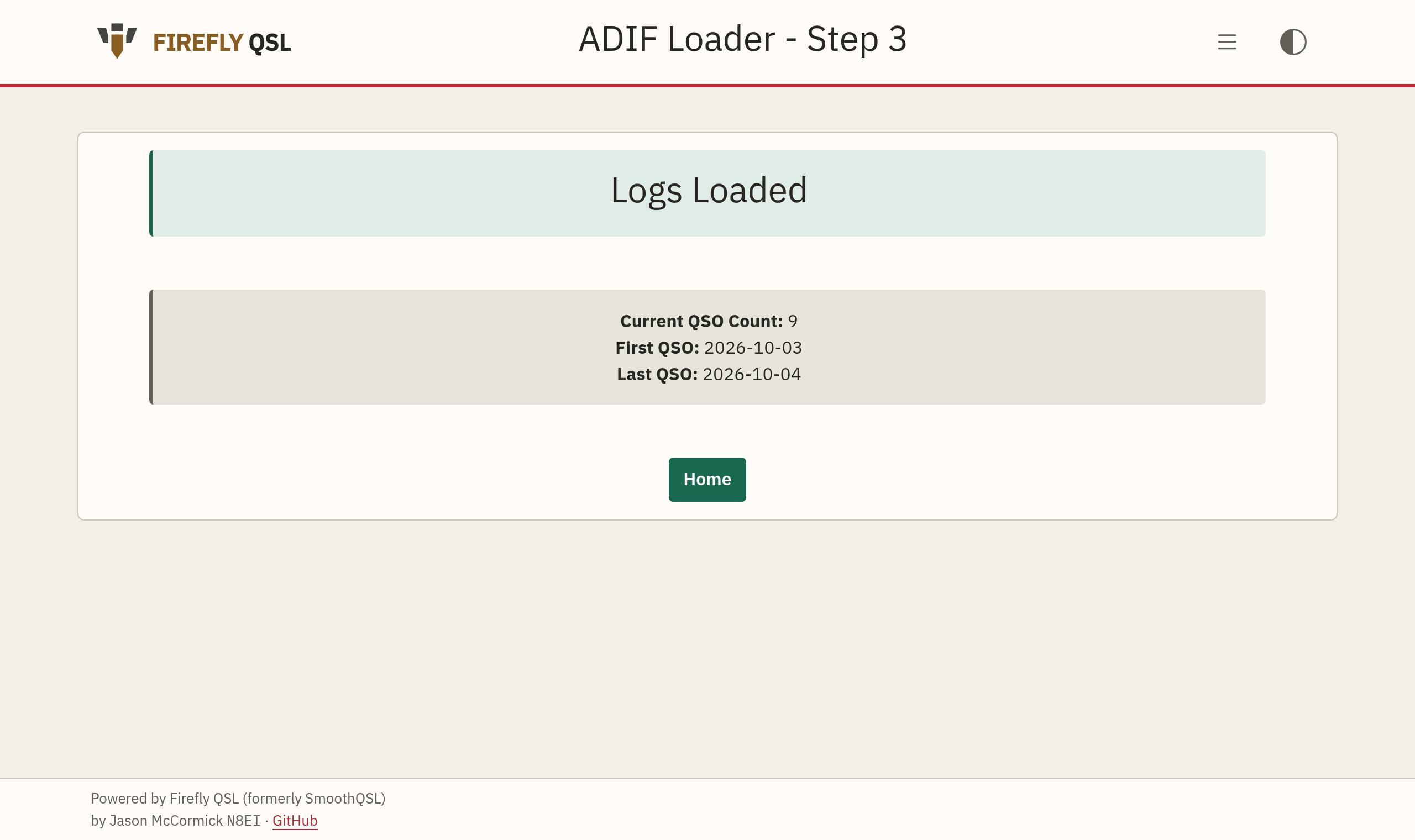
If the database reports an error, none of the QSOs in the file are saved and the error is shown. Fix the problem and upload the file again.
Removing QSOs
There is no page for removing QSOs. To remove a bad load, delete the rows
from the qsos table in the database. Each row records when it was
loaded in the tstamp column. Find the load first:
SELECT tstamp, station, COUNT(*) FROM qsos GROUP BY tstamp, station;
Then remove it. A large log can take more than a second to load, so use a short time range around it:
DELETE FROM qsos
WHERE station = 'Q1ABC'
  AND tstamp BETWEEN '2026-10-05 19:42:10' AND '2026-10-05 19:42:15';
This needs a database user with DELETE permission on qsos.